
A Claude Artifacts animation is an artifact whose code moves text, shapes and numbers. It plays beside your chat and is saved in the Artifacts tab. Artifacts are on every plan, Free included. Only the Motion template on Team and Enterprise has an MP4 export button. Without it, you get a video by screen recording the artifact or by rendering it with Claude Code (as of November 27, 2026).
A Claude Artifacts animation is simply an artifact whose code makes things move: numbers count up, cards slide in, bars grow. You ask for it in a normal chat, and the scene plays in a panel next to the conversation. That works on every plan, the free one included. Below you'll learn how to set up such a scene, change it without starting over, share it and finally turn it into a video. All facts come from the Claude Help Center article on artifacts, as of November 27, 2026.
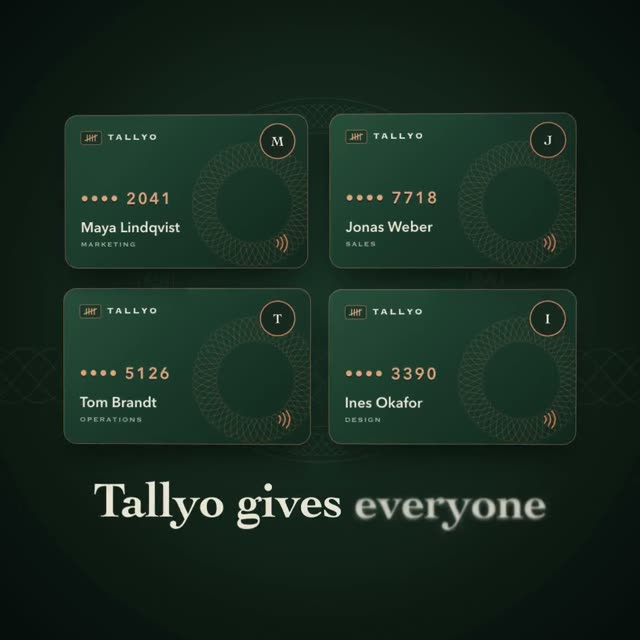
The video above is “Tallyo”, a product film for an invented company card with spending limits. It runs 10.8 seconds in a square 1:1 format and moves through five scenes: one shared card, four personal cards, a list of limits, receipts and the closing logo. An artifact in the chat can show exactly this kind of motion. The difference is the level of detail. Tallyo was built from a 13,708-word blueprint that pins down every move and every second. On the Tallyo page you can copy that prompt and swap in your own name, colors and numbers.
What is a Claude Artifacts animation?
The Help Center describes an artifact as anything Claude makes for you that you'd put in front of someone: a design, a deck, a document, a dashboard or a small interactive tool. It opens beside your chat, and you can edit it, come back to it later and share it. Every artifact is saved in the Artifacts tab in the sidebar, so you can find it from any conversation.
An animation is nothing special inside that system. Claude writes code that moves elements along a timeline, and the artifact plays the code. There is no video generation model behind it. That makes it a good fit for interfaces, charts, numbers and type, and a poor fit for real footage or people. You have three starting points for an animated scene:
- An artifact in the chat: describe the scene in a normal message. Works on every plan.
- The Motion template: pick “Motion” under “Output”, or start from the template in the Artifacts tab. It's a beta on Team and Enterprise and exports to MP4. Everything about the feature is in Claude Motion: how to get access, features and prompts.
- The Data template: among other formats, it builds a “Visual short” from connected data sources, a short video that walks through your numbers. It's included in Pro, Max, Ultra, Team and Enterprise.
One requirement applies to all three: artifacts need “Create and edit files” (formerly “Code execution and file creation”) turned on under Settings, Capabilities. If it's off, the animation only shows up as code in the chat.
How to build an animated scene in the chat
Claude creates an artifact when the content is substantial and stands on its own, which is almost always true for an animation. To get a usable result on the first try, your prompt has to cover what a template would otherwise decide: format, length, scenes with seconds, colors and how the scene ends. Here is an example with three scenes:
Build an artifact with an animated scene, 8 seconds, 1:1 format, looping. 0 to 2 s: a company card slides up into the center. 2 to 5 s: below it, a bar fills to 72%, the number “720 of 1,000” counts along. 5 to 8 s: a check mark appears with “Limit safe”. Dark background, one orange accent. All timings on one timeline, no randomness, no external files.
The graphic shows how this prompt splits the eight seconds. Each scene has a fixed start and end, and everything runs on the same clock:
One timeline Every move has fixed seconds. The scene looks the same every time it plays and can later be rendered to video frame by frame.
Scene width matches its duration. Split taken from the example prompt above, our recommendation for short scenes.
The last sentence of the prompt is there for a reason. “No randomness” stops Claude from building moves with random values that look different on every play. “No external files” keeps the scene from depending on web fonts or images from elsewhere, so it doesn't turn up empty when you share it. If you need your own images, attach them to the message.
Change the scene without rebuilding it
This is the big advantage over a video model: the animation is code. You can change a word, a number or a timing, and everything else stays as it was. Three habits make that reliable:
- One change per message. “Make scene 2 one second slower, change nothing else” lands more precisely than five requests at once.
- Say what should stay. Without that sentence, Claude sometimes rebuilds more than needed, the colors for example.
- Edit an earlier message. According to the Help Center, that creates a new version of the chat with its own artifacts. You can try another direction without losing the old one.
If the artifact shows an error, look for the “Try fixing with Claude” button next to it. It copies the error into a new message, and Claude looks for the cause. If the scene plays but stutters, jumps or freezes at the end, Claude animation not working? 7 causes and fixes has a table of symptom, cause and the exact sentence to send Claude.
Share it, send a link, install it as an app
Every artifact starts out private. To share one, open it and click “Share.” What you can do next depends on your plan. On Pro, Max and Ultra you choose “Only you” or “Anyone with the link”, or invite specific people by email (beta). On Team and Enterprise, artifacts stay inside the organization by default, and an owner decides whether people can share outside it. For new artifacts on the Free plan, the Help Center article on sharing lists no link sharing.
New since November 24, 2026: according to the Claude release notes, you can install an artifact as an app on your Mac or Windows computer (beta, on all plans, with Claude for Mac or Windows version 6.28899.0 or later). It gets its own window and icon, and it stays the same artifact: when you change it, the app changes too. For an animation, that means a looping number scene or an animated dashboard can run in its own window on a second screen. You need to be online and signed in to Claude Desktop to open it.
From artifact to MP4
For Instagram, a deck or your website you usually need a video file. This is where the routes differ most:
| Question | Artifact in chatall plans | Motion templateTeam, Enterprise | Claude CodePro, Max, Ultra, Team |
|---|---|---|---|
| Where does it play? | next to the chat | in the Motion editor | in a folder on your computer |
| MP4 button | no | yes, “Export” then MP4 | no, one command renders it |
| How the video is made | screen recording or a detour through Claude Code | straight from the template | rendered frame by frame |
| Best for | short scenes, drafts, tests | explainers built from reports and numbers | long product films with fixed seconds |
As of November 27, 2026, based on the Claude Help Center articles on artifacts, Motion and sharing. The “Best for” row is our assessment.
A screen recording is the fastest route without Motion, but it can stutter if your computer can't keep up while playing. The cleaner way is to render the animation frame by frame. For that it has to run on a single timeline, which is exactly why that sentence is in the example prompt. The export itself is explained in How to export a Claude animation to MP4. If you don't have a Team plan, Claude Motion without a Team plan compares the three routes, costs included.
When an artifact is enough and when you need a blueprint
A three-scene artifact takes a few minutes. For an idea, a draft for colleagues or an animated chart in a deck, that's exactly right. A product film that has to hold its own on Instagram next to ads from big brands needs more than a 450-character prompt, though. There, the small things decide: how softly a card slows down, when the sound comes in, how the camera travels from one scene to the next.
That's why our prompts are long. The Tallyo blueprint has ten parts: what is being built, how to adapt it to your brand, the design system, stage and camera, every element, the timeline with all events, the transitions, the motion rules, a frame-by-frame check and the sound. More than 13,000 words for under 11 seconds of film sounds like a lot, but every line is a decision Claude would otherwise make on its own. More finished films with their length and prompt size are in Claude animation examples: 12 videos and their prompts.
So a good workflow is: test the idea as a small artifact in the chat first. If you like it, use a detailed blueprint for the final film and let Claude Code render it to MP4. You don't have to write that blueprint yourself. The DrillUp library has ready-made video prompts for motion design, 3D, talking head and launch films, each with the video it produced. How to get from setting up Claude Code to a finished file is covered step by step in the DrillUp Academy.
Frequently asked questions
Do I need a paid plan for animated artifacts?
No. According to the Claude Help Center, artifacts are available on Free, Pro, Max, Ultra, Team and Enterprise. The setting “Create and edit files” under Settings, Capabilities has to be on. Only the Motion template with MP4 export is limited to Team and Enterprise (as of November 27, 2026).
Why doesn't Claude show my animation as an artifact?
Most often “Create and edit files” is switched off under Settings, Capabilities. The Help Center says artifacts need it. If that's not it, ask Claude directly for “an artifact with an animated scene” and give it a format and a length.
Can I download an artifact animation as an MP4?
With one click only if it was made from the Motion template: click “Export” and choose MP4. That is available on Team and Enterprise. On other plans, you record the animation or have Claude Code render it to MP4 frame by frame.
Can I show an animated artifact on my website?
You can link to it: on Pro, Max and Ultra, set the artifact to “Anyone with the link.” For a website, an MP4 is usually the better choice, because it plays the same everywhere and needs no Claude account.