
An App Store preview video runs 15 to 30 seconds, and Apple allows up to three per device size and language. It has to show content from the app itself, captured on device, with no hands, prices or dates. For current iPhones Apple accepts 886 × 1920 pixels in portrait. A freely animated promo film belongs on Instagram, TikTok, your website and in ads instead.
An App Store preview video is the short clip that sits before the screenshots on your product page and can autoplay, muted, in search results. Apple allows 15 to 30 seconds and up to three previews per device size and language, and the video may only show what really happens inside your app. This guide puts every rule in one place, compares the App Store with Google Play, gives you a 25-second structure that works with the sound off, and answers honestly where an animated promo video fits better.
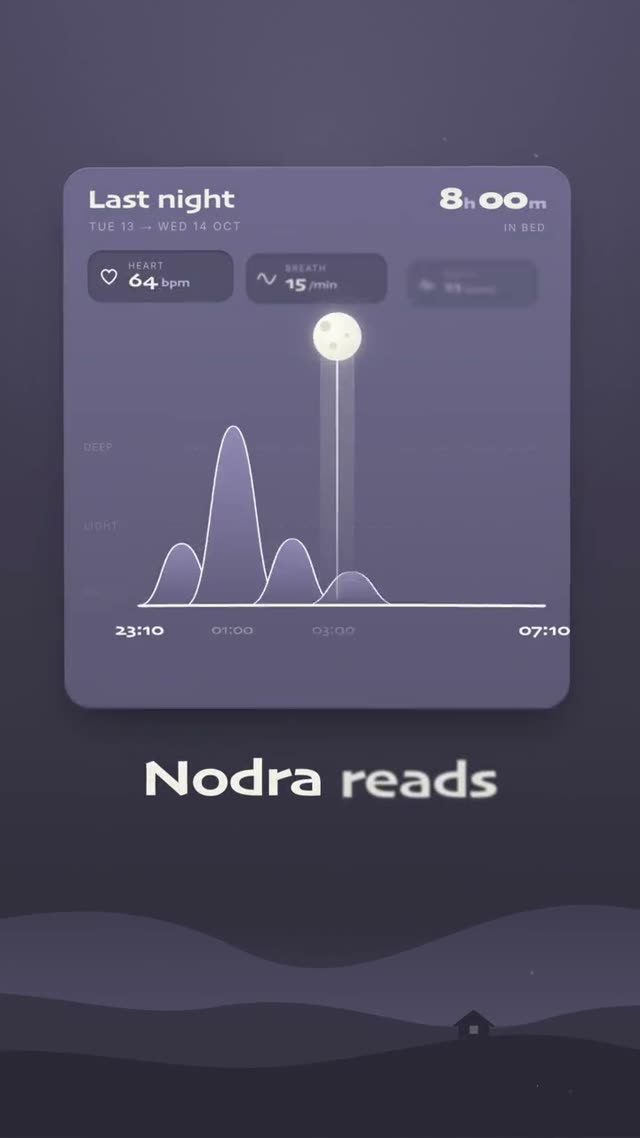
The film above is “Nodra”, a 10-second, fully animated product film for a made-up sleep app from our library. It would be too short and too stylised for the App Store. Further down you will see why, and where a film like this earns its keep anyway.
Apple's specs for an App Store preview video
Apple documents the technical side in App Store Connect in detail. Knowing it before you record saves you a round of re-exports. The essentials:
- Length: 15 seconds minimum, 30 seconds maximum.
- Number: up to three previews per device size and language. All of them are optional.
- Files: H.264 as .mov, .m4v or .mp4, or ProRes 422 (HQ only) as .mov. 500 MB at most.
- Frame rate: 30 frames per second at most, so a 60 fps screen recording needs converting first.
- Audio: stereo; for H.264 that means 256 kbps AAC at 44.1 or 48 kHz.
- Poster frame: by default Apple uses the frame at the 5-second mark. You can pick another one.
- Processing: after upload it can take up to 24 hours before the preview is ready.
Resolution is where many people trip up. Apple does not want your iPhone's screen resolution but one of a few accepted sizes. For every current iPhone with Face ID or Dynamic Island that is 886 × 1920 pixels in portrait or 1920 × 886 in landscape. The 13-inch iPad takes 1200 × 1600 or 1600 × 1200. Mac and Apple TV only accept 1920 × 1080 landscape, Apple Vision Pro 3840 × 2160 landscape. If your interface looks the same on every device, upload the largest version and Apple scales it down for the rest.
As of October 25, 2026, according to Apple: App preview specifications.
What your preview may and may not show
The content rules are stricter than the technical ones. Apple's guidance says a preview must show only content from within the app itself, using footage captured on device. That sets some clear limits:
- No hands, no people holding the device: Apple names over-the-shoulder shots and fingers tapping the screen. To show where someone taps, graphic touch indicators are allowed.
- Simple transitions: dissolves and fades are fine, as long as they don't suggest a feature your app doesn't have.
- No prices, no dates: prices and currencies vary by region, and lines like “new for spring” date the video quickly.
- Disclose subscriptions, purchases and logins: if you show features that need an in-app purchase, a subscription or a login, say so, either in the footage or on the end frame.
- Suitable for all ages: no violence, adult themes or profanity, and only music, brands and footage you may use for marketing in every territory.
Apple also recommends capturing the interface at its native resolution instead of zooming in. And because previews start muted, Apple suggests on-screen copy that is legible and stays up long enough to read. In practice, an App Store preview video is a well-planned screen recording with short captions, not a freely animated commercial.
App Store vs Google Play vs your own promo film
Plenty of teams make one video and upload it everywhere. That rarely works, because the two stores ask for different things and a social promo follows yet another set of rules. Side by side:
| App Storepreview video | Google Playpreview video | Own promo filme.g. from a prompt | |
|---|---|---|---|
| Where it plays | product page and search in the App Store | store listing, also home and search | Instagram, TikTok, website, ads |
| Length | 15 to 30 s | no rule, the first 30 s autoplay | your choice |
| Upload | file in App Store Connect, up to 500 MB | YouTube link, public or unlisted, ads off | MP4 straight to the platform |
| Format | fixed sizes, iPhone 886 × 1920 | portrait or landscape, no black bars | 9:16, 1:1 or 16:9 per channel |
| Content | in-app content only, no hands | recommended: at least 80 % real app use | animation, text and effects as you like |
As of October 25, 2026, according to Apple: App Previews and Google Play Console Help. Promo films follow the rules of each platform.
Google Play adds a few points: the video must not be private or age-restricted, and Google advises against calls to action like “download now”. The real app should appear as early as possible, according to Google within the first 10 seconds.
A 25-second structure that works on mute
Apple suggests using your first preview as an overview and further previews for additional features, each one showing people something new. For that first video, a simple arc carries over to almost any app:
As of October 25, 2026, limits and poster frame according to Apple.
Three things make this plan work. First, it opens with the result, not the logo. Someone scrolling past your preview in search sees within seconds what the app delivers. Second, second 5 lands on a calm moment with a clear picture. That matters because Apple shows this frame as the poster when someone has turned autoplay off. Third, every scene carries exactly one short line. Read it aloud while you test: if you can't finish before the scene changes, the line is too long.
Your second and third previews can then be more targeted, say one for a feature people search for and one for something screenshots show badly, like an animation or a flow across several steps.
Where an animated promo film belongs
Back to Nodra. A moon travels a dotted arc through the night while a counter adds up the hours in bed. The arc turns into a sleep curve, the deep sleep lights up, a score lands on 61, a tip suggests going to bed a little earlier, and finally a week of scores climbs to 86. All in 10 seconds, without a word of voice-over, and every number stays razor sharp.
A film like that is not an App Store preview. The interface is recreated and stylised, the camera moves, shapes transform into each other. Apple's rule of in-app content captured on device leaves no room for it in the store. Elsewhere, though, it beats any screen recording:
- Instagram Reels and TikTok: 9:16, short, clear on mute. Exactly the format of the films in our library.
- Your website: as the video in the first section, before anyone scrolls to the download button.
- Ads: on platforms that allow free design, for example ads on Instagram.
- Launch pages: such as the Product Hunt gallery. See Product Hunt launch video for how that works.
Films like this come out of a prompt because an AI such as Claude builds the animation as code. App name, numbers and copy then appear in every frame exactly as you wrote them. Pure text-to-video models tend to warp type and interfaces, which we explain in AI video garbled text. Here is the public opening of a prompt like that:
# Nodra – 10-second product film for a sleep-tracking app, 9:16 ## 0. What you are building Build a short vertical product film for an invented sleep-tracking app called Nodra. One moon carries the whole film. First it rides a dotted arc from 23:10 to 07:10 while a big counter runs up to "8h 00m in bed"; an alarm card under the arc shows
another 13,885 wordsThis is only the start. Our prompts average around 15,000 words: every scene, every movement, every colour is described precisely. That is why your video comes very close to the example.
Get access nowPick a video
You see exactly what you will get.
Copy the prompt
One click. Structure, style and motion are already in there.
Create your own video
Change topic, style and scenes. No experience needed.
So the job splits into two videos with two jobs. The store preview convinces people who are already on your product page. The animated promo film brings them there in the first place. And the lines that work in the promo film can often go straight into your preview as captions.
Checklist before you upload
Before your App Store preview video goes into App Store Connect, run through these points once:
- Is it between 15 and 30 seconds long?
- Does it use an accepted resolution, such as 886 × 1920 for current iPhones, at 30 frames per second or less?
- Does the aspect ratio match your screenshots? Otherwise Apple shows the preview in a separate “A Closer Look” section instead of up front.
- Are there no hands, prices or dates on screen?
- Is there a note in the video if the features shown need a subscription, a purchase or a login?
- Did you choose a strong poster frame? According to Apple, changing it later means submitting the preview again.
- Does the video make sense muted and small, the way it appears in search?
If everything checks out, allow up to a day of processing before the preview shows on your product page. For the promo film around your launch, you will find ready-made portrait templates under 9:16 prompts, examples for health and fitness apps under health and fitness, and every video with its prompt in the DrillUp library. How to build a launch film for your app step by step is covered in SaaS launch video with AI, and how to save the finished animation as an MP4 in export a Claude animation to MP4.
Frequently asked questions
How long can an App Store preview video be?
At least 15 and at most 30 seconds. You can upload up to three previews per device size and language. They are optional and appear on your product page before the screenshots (as of October 25, 2026, according to Apple).
What resolution does an iPhone app preview need?
For current iPhones with Face ID or Dynamic Island, Apple accepts 886 × 1920 pixels in portrait or 1920 × 886 in landscape, at up to 30 frames per second. Use the accepted resolution, not your device's screen resolution. If your interface looks the same everywhere, the largest version is enough and Apple scales it down.
Can I use an animated video as an app preview?
Apple requires the preview to show only content from within the app, captured on device. Simple transitions such as dissolves, on-screen text and graphic touch indicators are fine. A freely animated promo film with a recreated interface does not fit that rule, but it works very well on social media, your website and in ads.
Can I use the same video on Google Play?
Only partly. Google Play embeds the video as a YouTube link with ads turned off, set to public or unlisted. There is no fixed length, but only the first 30 seconds autoplay. Because format, resolution and rules differ, a separate cut for each store is usually worth it.