Claude turns your screenshots into an app demo video by rebuilding each screen as code and then animating it piece by piece. You need three to five screenshots of one flow in your app, a prompt with scenes and seconds, and a way to get an MP4. A preview as an artifact in the chat works on every plan, and Claude Code builds the full film as an MP4 from the Pro plan up.
To make an app demo video from screenshots, Claude rebuilds each screen as code and then animates it: buttons light up, amounts count up, one screen slides into the next. You give Claude three to five screenshots of one flow in your app and a prompt with scenes and seconds. A preview plays as an artifact in the chat, and Claude Code renders the finished film as an MP4 on your computer. That way you get a demo video without recording your screen and without editing software.
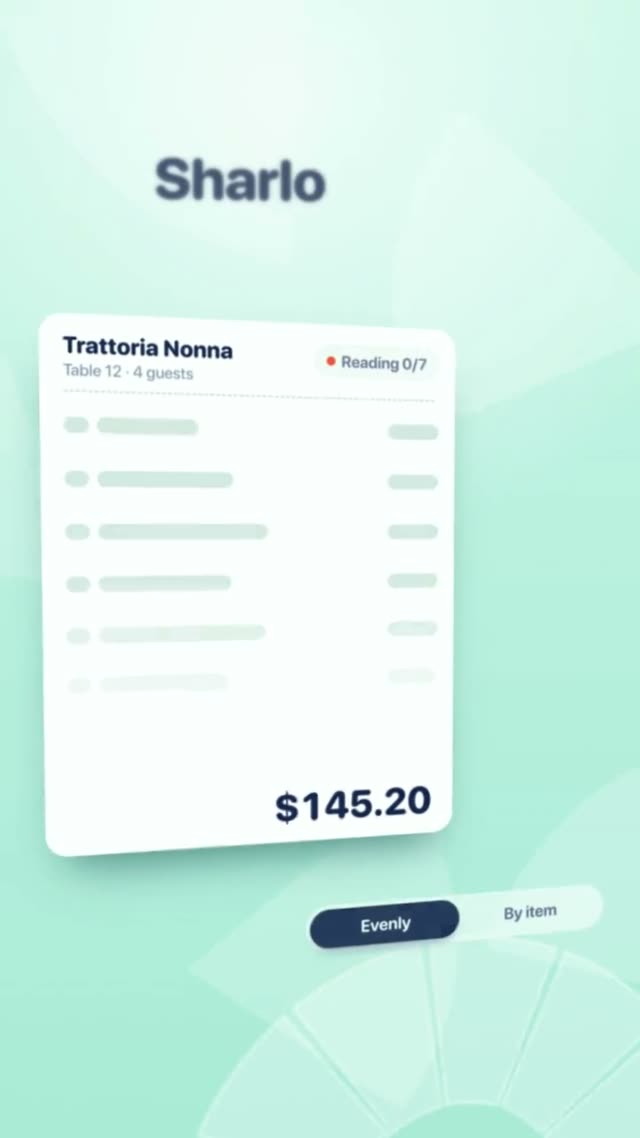
The video above is “Sharlo”, a 9.6 second film in 9:16 for an invented app that splits a restaurant bill between friends. The app interface in it is not a pasted image. It is built entirely in code, and that is exactly how Claude treats your screenshots too. The prompt behind Sharlo is 16,111 words long and sets every movement. If you want a film like this for your own app, copy the prompt on the Sharlo page and give Claude your screenshots with it. Claude then swaps the name, colours and screens for yours.
Why Claude rebuilds your screenshots instead of just showing them
Many online tools drop your screenshots into a phone frame and slowly zoom in. That is quick, but it feels like a slideshow. Claude works differently because it is not a video model. It reads the screenshot, picks up colours, fonts, spacing and text, and writes an interface as code. After that, every part of the interface can move on its own.
| Paste the screenshotimage in a phone frame | Rebuild the screenhow Claude works | |
|---|---|---|
| Motion | only the whole image: zoom, slide | every part on its own: button, number, list |
| Sharpness when zooming in | gets blurry | stays sharp |
| Change a text or amount | take a new screenshot | one sentence in the chat |
| 9:16 and 16:9 | borders or cropping | layout adapts |
| What to watch | little | compare the rebuild with the original once |
As of November 19, 2026. A comparison of two ways of working, not a rating of any provider.
The rebuild has a cost. Claude may copy small things slightly differently, such as an icon, a gap or a font size. In a demo video that rarely matters, as long as the text, colours and layout are right. Still, every film needs one check against the original before it goes live.
Which screenshots you need for an app demo video
A good demo video does not show every screen of your app. It shows one flow that proves your promise. For a bill splitting app that would be: take a photo of the bill, assign the items to friends, everyone pays their share. Everything else, like settings or the profile, stays out. These rules have worked well for us:
- Three to five screens: Three to five screenshots are enough for a 10 to 30 second film. More screens mean shorter scenes, and then nobody can read anything.
- One device, one resolution: Take all screenshots on the same phone or in the same browser window. That keeps font sizes and spacing consistent in the film.
- Full size, no cropping: The more Claude sees, the more accurate the rebuild. Send the original files, not shrunken images from a messenger.
- Made-up data: Use a test account with invented names and amounts. Whatever is on the screenshot will otherwise end up in the film.
- One sentence per screen: Write down what the viewer should understand on each screen. That sentence becomes the scene.
How four screenshots become a 10 second film
Each screenshot gets its own scene with fixed seconds and exactly one movement that shows what matters. The graphic shows this for an app that splits bills. You write a plan like this into your prompt before Claude starts.
As of November 19, 2026. Our example plan, the seconds are a suggestion for Instagram and TikTok.
The order hook, task, solution, end fits almost any app. The first screen matters most: in the first two seconds the viewer decides whether to keep watching. So scene 1 does not show your menu. It shows the problem your app solves.
The prompt: screenshots, scenes and seconds
Attach the screenshots to your message and describe the film scene by scene. The example below is short, but it has everything Claude needs for a first draft:
Build a 10 second app demo video in 9:16 from the four attached screenshots. Rebuild every screen as code, keep all text word for word and do not add features. Scene 1 (0 to 2 s) screen 1, scene 2 (2 to 5 s) screen 2, scene 3 (5 to 8 s) screen 3, scene 4 (8 to 10 s) screen 4 with the logo. One movement per scene, smooth transitions, all timings fixed in the code.
Two parts of it matter more than they seem. “Keep all text word for word” stops Claude from improving or inventing labels. “Do not add features” stops buttons from showing up in the film that your app does not have. And fixed timings in the code make sure the film looks the same every time it plays, so it can be saved cleanly as an MP4.
A short prompt like this gets you a decent draft. For a film that looks like Sharlo, a prompt also sets the colours, fonts, every camera move, every transition and the sound. That is why the prompts in our library are so long.
Where the video is made: artifact, Claude Code or Motion
There are three ways to make the film itself. Which one fits depends on your plan and on whether you need a preview or a finished file (all details from the Claude pricing page, as of November 17, 2026):
- Artifact in the chat: on every plan, including Free. The animation plays as a preview next to the chat. Good for testing the flow. For an MP4 you need one extra step.
- Claude Code: on Pro, Max and Ultra. Claude Code builds the film as a project on your computer and renders it frame by frame as an MP4. This is the way for a video you actually want to post. How the export works is explained in Export a Claude animation to MP4.
- Claude Motion: only on Team and Enterprise, with an editor and an export button. What to do without those plans is in Claude Motion without a Team plan.
If you need the demo video for the App Store, there are separate rules for length and resolution. They are in App Store preview video: specs, length, structure. For a longer launch film with your website and several features, read SaaS launch video with AI.
Five mistakes in demo videos made from screenshots
Most weak demo videos do not fail because of the tech. They fail on these five points:
- Too many screens: Nobody can read ten screens in ten seconds. Use four screens and give each one time.
- Motion without a goal: When everything wiggles at once, the viewer sees nothing. In each scene, only the one part that matters moves.
- Invented text: Without the line “keep all text word for word”, Claude may change labels. Check every scene against your screenshot.
- No problem at the start: A film that opens on the menu loses viewers after one second. Start with the reason your app exists.
- Real data on screen: Names, email addresses or balances from your real account do not belong in a public video.
Get to a finished film faster
A short prompt like the one above gets you to a first draft. For a film that looks like a real ad, you need a long blueprint that sets every movement. You do not have to write it yourself. In the DrillUp library you will find ready-made video prompts for app and SaaS films, each with the video it produced. Pick a style, for example Sharlo, copy the prompt, attach your screenshots and turn it into the demo video for your app. How to set up Claude for this is shown step by step in the DrillUp Academy.
Frequently asked questions
Can Claude turn my screenshots straight into a video?
Claude can read images and build an animation from them as code. It is not a video model that generates pixels. So Claude rebuilds the screens and moves their parts. The finished video is an MP4 that is rendered from this code.
How many screenshots do I need for a demo video?
Three to five screenshots are enough for a 10 to 30 second film. What matters more than the number is that they all belong to one flow, for example open the app, do one task, see the result. Each screen gets its own scene with fixed seconds.
Will the rebuilt screens match my app exactly?
Usually very closely, but not always exactly. Claude may copy spacing, font sizes or small icons slightly differently. Tell Claude in the prompt to keep every text word for word, and compare each scene with your screenshot once before you publish the video.
Do I need Claude Motion for this?
No. Motion is only available on Team and Enterprise (as of November 17, 2026). A preview as an artifact in the chat works on every plan, and Claude Code builds the full film as an MP4 on Pro, Max and Ultra.
Can I leave real customer data in the screenshots?
Better not. Use screenshots from a test account with made-up names and amounts, or cover private data first. Whatever is in the screenshot may otherwise end up in the film.